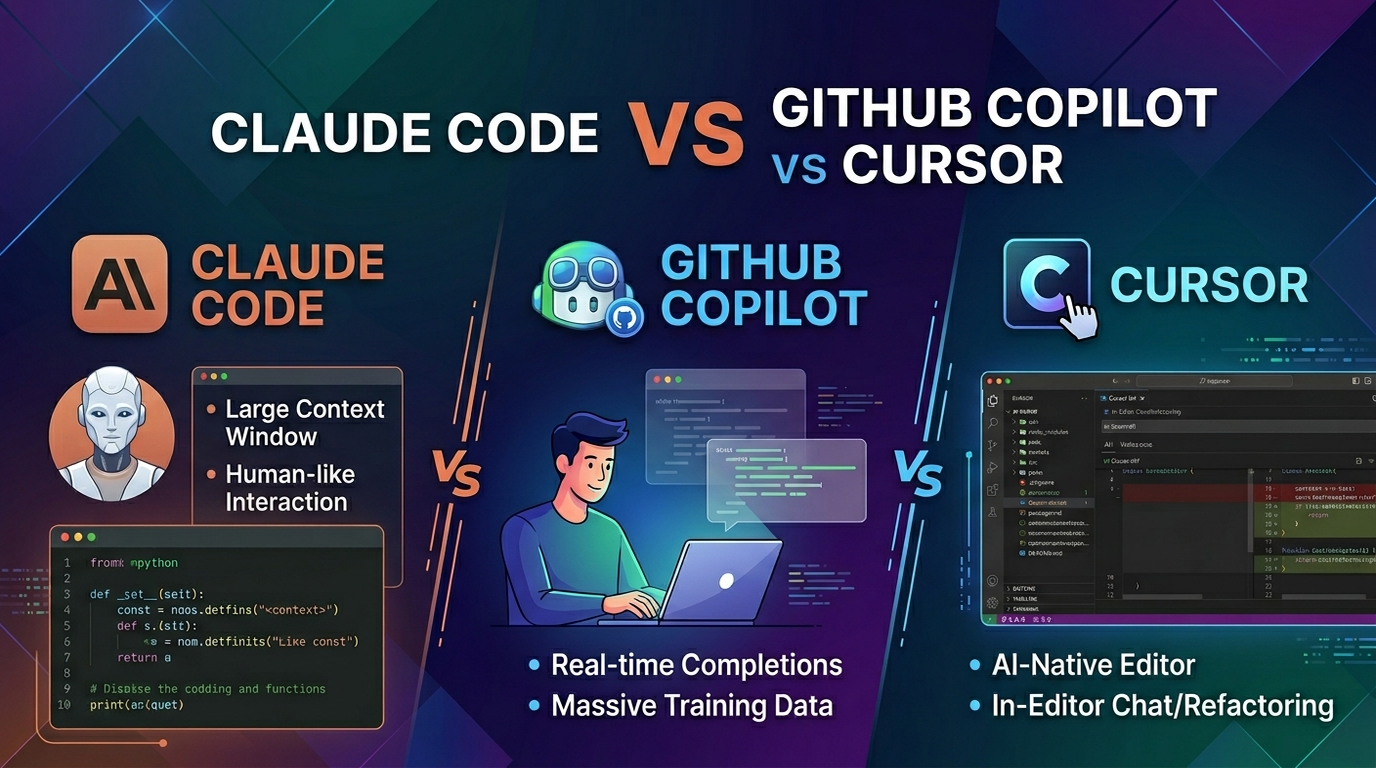
AI coding tools have gone from experimental autocomplete engines to full-blown development partners. In 2026, three tools dominate the conversation: Claude Code by Anthropic, GitHub Copilot by Microsoft/OpenAI, and Cursor - the AI-first code editor. But which one should you actually use?
We have been using all three in production at Logic Providers across Laravel, React, Node.js, and mobile projects. This is not a spec-sheet comparison - it is a practical breakdown based on months of real-world usage.
What Each Tool Actually Is
Before diving into comparisons, it is important to understand that these three tools solve the problem differently:
- Claude Code is a CLI-based agentic coding tool. You give it a task in natural language, and it reads your codebase, plans changes, edits files, runs tests, and commits code - all autonomously. It also runs as a desktop app, web app, and inside VS Code and JetBrains IDEs.
- GitHub Copilot is an inline code completion tool that lives inside your editor. It predicts what you are about to type and suggests completions in real-time. Copilot Chat adds a conversation layer for asking questions about your code.
- Cursor is a forked VS Code editor with AI deeply integrated. It offers inline completions like Copilot but also has a Composer feature for multi-file edits and an Agent mode for autonomous tasks.
Code Completion: Who Writes Better Code?
GitHub Copilot
Copilot still offers the fastest inline completions. It is excellent at predicting the next line, auto-filling function bodies, and generating boilerplate. For repetitive tasks like writing test cases, API routes, or database migrations, Copilot saves significant time. However, its suggestions can be shallow - it sometimes generates plausible-looking code that does not account for your project-specific patterns or business logic.
Cursor
Cursor provides similar inline completions but with better context awareness. Its Tab feature learns from your recent edits and predicts multi-line changes. Where Cursor shines is its ability to reference specific files or documentation when generating code, resulting in more accurate suggestions that fit your project architecture.
Claude Code
Claude Code does not do traditional line-by-line autocomplete. Instead, it operates at a higher level - you describe what you want (a feature, a bug fix, a refactor), and it reads relevant files across your codebase, plans the implementation, and writes complete, working code across multiple files. It understands project structure, existing patterns, and dependencies in a way that inline tools cannot match.
Multi-File Editing: The Real Test
This is where the tools diverge dramatically. Real development work rarely involves editing a single file in isolation.
Copilot is weakest here. It works file-by-file and has limited awareness of your broader project. You need to manually jump between files and prompt it for each change.
Cursor Composer handles multi-file edits well. You can select multiple files, describe the change, and it generates diffs across them. However, you still need to manually select which files to include, and complex refactors sometimes miss edge cases.
Claude Code excels at multi-file operations. It autonomously explores your codebase using tools like grep and file reading to find all relevant files, then makes coordinated changes across them. For example, you can say "add a new API endpoint for user preferences with validation, controller, route, and tests" and it will create or modify all the necessary files without you pointing them out.
Codebase Understanding
One of the biggest differences is how much of your project each tool can actually understand.
- Copilot sees the current file and a few recently opened tabs. Its context window is limited, which means it often misses project-wide patterns.
- Cursor indexes your entire codebase and lets you reference specific files with @ mentions. This gives it better project awareness, though it can struggle with very large codebases.
- Claude Code with its 1M token context window can hold massive amounts of code in memory. It actively reads files, searches for patterns, and builds understanding of your architecture before making changes. For large enterprise projects, this is a game changer.
Terminal and DevOps Integration
Copilot recently added terminal integration for suggesting commands, but it is basic.
Cursor has a terminal panel but AI assistance there is limited compared to its editor capabilities.
Claude Code is natively a CLI tool. It can run shell commands, execute tests, check build output, and fix errors based on terminal feedback. This makes it particularly powerful for DevOps tasks, debugging CI failures, and deployment workflows.
Pricing Comparison (2026)
| Tool | Free Tier | Pro Plan | Best For |
| GitHub Copilot | Limited free tier | $10/month (Individual), $19/month (Business) | Fast inline completions |
| Cursor | Free tier with limits | $20/month (Pro), $40/month (Business) | AI-native editor experience |
| Claude Code | Included with Claude Pro ($20/month) or use your API key | $20/month (Pro) or $100/month (Max) or API-based pay-per-use | Autonomous multi-file tasks |
Real-World Performance: What We Use and When
After months of using all three tools across our projects at Logic Providers, here is how we actually use them:
For quick edits and boilerplate: GitHub Copilot. When you are writing a simple function, filling out a form component, or writing repetitive code, Copilot is the fastest. It stays out of your way and just completes what you are typing.
For focused feature work in a single codebase: Cursor. When you are building a new feature and want AI assistance that understands your project files, Cursor Composer is excellent. The ability to @ reference files and get context-aware multi-file edits makes it great for medium-complexity tasks.
For complex tasks, refactors, and bug fixes: Claude Code. When you need to trace a bug across multiple files, refactor a module, add a feature that touches the frontend, backend, and database, or fix failing tests - Claude Code is unmatched. Its ability to autonomously explore, plan, and execute makes it feel like pair programming with a senior developer.
Strengths and Weaknesses Summary
GitHub Copilot
- Strengths: Fastest inline completions, lowest friction, works in any editor, great for boilerplate
- Weaknesses: Limited codebase awareness, single-file focus, suggestions can be generic
Cursor
- Strengths: Deep editor integration, good multi-file editing, codebase indexing, familiar VS Code interface
- Weaknesses: Requires switching editors, can be slow on large projects, Composer sometimes misses files
Claude Code
- Strengths: Autonomous multi-file editing, massive context window, terminal integration, understands entire codebases, works in CLI/desktop/web/IDE
- Weaknesses: Not designed for quick inline completions, uses more tokens for complex tasks, requires comfort with AI autonomy
Which One Should You Choose?
The honest answer: it depends on your workflow, and many developers use more than one.
- Choose Copilot if you want fast, low-friction autocomplete that speeds up everyday coding without changing your workflow.
- Choose Cursor if you want a modern AI-first editor with great multi-file support and do not mind switching from VS Code.
- Choose Claude Code if you work on complex projects, need autonomous task execution, or want an AI that truly understands your entire codebase before making changes.
At Logic Providers, our team uses Claude Code as the primary tool for feature development, bug fixing, and code reviews, with Copilot running alongside for quick inline completions. This combination gives us the best of both worlds - speed for simple tasks and depth for complex ones.
Final Verdict
The AI coding tool landscape in 2026 is not about picking one winner. Each tool has carved out a clear niche. Copilot is the best autocomplete engine. Cursor is the best AI-enhanced editor. Claude Code is the best autonomous coding agent.
The real question is not which tool is best - it is which combination fits how you work. Try all three, use them for a real project (not just a demo), and you will quickly discover which ones earn a permanent spot in your toolkit.